Xbox Not Enough Space Error When Installing a Game: Fixes
You press install and the Xbox tells you there is not enough space. The message is clear, but it does not tell you where to look or what to remove. This guide shows you how to check your storage, free the right amount and avoid the error next time.
It also matters for the GTA 6 preload, which opens on November 12, 2026, with launch on November 19. Rockstar has not published an official install size, so learning to manage space now is time well spent.
What the error means
The console has found less free space on the drive it wants to use than the install needs. Two details are easy to miss:
- It checks one drive at a time. If you have an internal SSD and an expansion card, free space on one does not help the other.
- Installing may need more room than the game's final size. Sony says the same of the PS5. We could not confirm how much extra the Xbox needs.
Step 1: See how much space each drive has
- Press the Xbox button to open the guide.
- Go to Profile & system, then Settings, then System.
- Choose Storage devices.
- Select each drive to see its used and free space.
Write down the free space of each drive. Our 30-second storage check shows the same for PS5 and Xbox.
Step 2: Know how much the game needs
Check the size shown on the game's page before you install, and compare it with the free space on the drive. Remember the extra room an install can need, so aim for a clear margin.
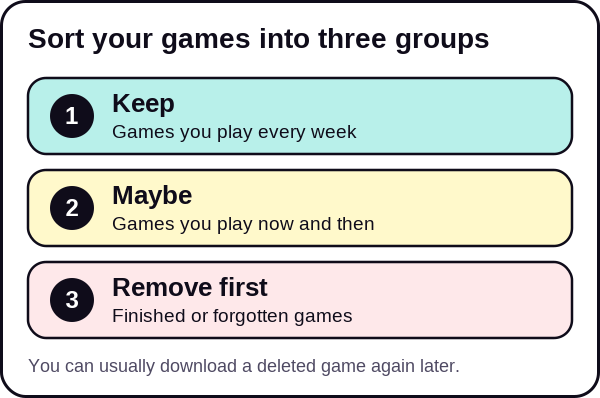
Step 3: Uninstall games you do not play
This is the fastest fix and it costs nothing.
- Open My games & apps from the guide.
- Choose See all, then Games.
- Highlight a game you no longer play and press the Menu button on your controller.
- Choose Manage game and add-ons, then Uninstall all.
Uninstalling does not delete your purchase. Microsoft says the data for your games, including saved games, syncs online when you sign in, so you can reinstall later and pick up your progress. If a game matters to you and you are unsure about its saves, keep it installed for now.
Step 4: Back up or delete captures
Screenshots and game clips can use a lot of space, especially video.
- From the guide, go to My games & apps, See all, Apps and Captures.
- Select the captures you want to keep and back them up to OneDrive or to an external drive.
- Delete the originals from the console.
Step 5: Move games between drives
If you have an expansion card or a USB drive, you can free the internal SSD by moving games. Microsoft says games optimized for Xbox Series X|S must run from the internal SSD or the expansion card, so a USB drive is for storing them and moving them back to play. Read our guide to external drives on PS5 and Xbox.
Step 6: Check where games install
With more than one drive, check which one the console uses by default, so a new game does not try to fit on the fullest one.
Step 7: Add storage if you still need room
When you have deleted what you can and still need space, a storage expansion card is the upgrade made for the Series X and S. See our comparison of Xbox storage expansion cards .
How much space you have to begin with matters most on the Series S:
| Console | Usable storage |
|---|---|
| Xbox Series X | 802 GB |
| Xbox Series S (512GB model) | 364 GB |
The Series S 512GB model fills up quickly. Read how big GTA 6 may be on a Series S to plan.
If the error keeps appearing
- Restart the console and try the install again.
- Free more space. The margin you left may not have been enough.
- Check that you are installing to the drive you think. See step 6.
- Look at the Xbox status page in case of a service problem.
If you are on a PS5, see the PS5 equivalent of this error.
Prepare before November 12
- Check your free space on every drive.
- Free the room you can now, without a rush on preload day.
- Read our guide to freeing up storage on Xbox Series X and S.
The short version
- The error means the drive the console wants to use does not have enough free space.
- Check each drive in Settings, System, Storage devices.
- Uninstall games you do not play, back up captures and move games if you have another drive.
- Add an expansion card if you still need room.
See our Fixes & Errors hub and the GTA 6 setup checklist.
Sources
- Xbox Support: Manage storage on your Xbox console
- Xbox Support: Use the Storage Expansion Card for Xbox Series X|S
Usable-storage figures on this site (667 GB for the original PS5, about 842 GB for the Slim, about 1.89 TB for the Pro, 802 GB for the Series X and 364 GB for the Series S 512GB) are commonly reported by press and users. Sony and Microsoft list each console's total capacity and say part of it is reserved for system software, so the free space shown on your own console is the number that counts. We found no GTA 6 install size on Rockstar's official pages.
Official pages consulted on October 22, 2026.
We update this guide when Microsoft changes these steps.
Frequently asked questions
Why does my Xbox say not enough space when I have room?
The console checks the drive it plans to install to, not your total space across drives. An install can also need more free space than the finished game. Check each drive separately.
Which Xbox drives count?
The internal SSD and a storage expansion card are listed separately. A USB drive can store games but, per Microsoft, does not run games optimized for Series X|S.
How much space does GTA 6 need on Xbox?
Rockstar has not published the install size, so nobody knows yet. Plan for more than you think.
Does deleting a game delete my saves?
Microsoft says saved games and preferences sync online when you sign in, so a reinstalled game can bring your progress back. Check before you uninstall a game you care about.