How to Clear Space on PS5 Before the GTA 6 Preload
The GTA 6 preload starts on November 12, 2026 for digital buyers, and the game launches on November 19. Rockstar has not published an official install size, so the safest plan is to clear as much space as is practical now, in a calm order, instead of deleting games in a panic on preload day.
This guide takes you from "my PS5 is full" to "I have room", step by step.
Before you delete anything
Know where you stand. A few minutes of checking saves you from deleting the wrong things.
- Note your free space. Use our guide on how to check free storage on any PS5 or Xbox. Write the number down.
- Know your ceiling. Usable storage is 667 GB on the original PS5, about 842 GB on the PS5 Slim and about 1.89 TB on the PS5 Pro. That is the most you can ever have free.
- Back up what matters. If you use cloud saves, make sure they are up to date. If you are unsure about a game's saves, keep that game for now.
Step 1: See what takes the space
From the home screen, go to Settings, then Storage, then Console Storage, then Games and Apps. Look through the list for the games that take the most space. You will usually find that a few large games use most of it.
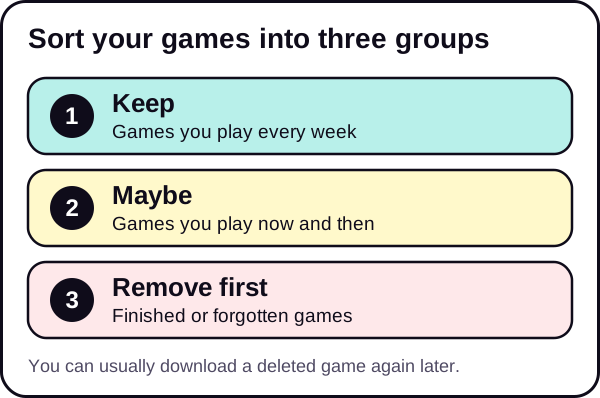
Make three lists:
- Play every week. Keep these, for now.
- Play now and then. Candidates to remove.
- Finished or forgotten. Remove first.
Step 2: Delete games you no longer play
Start with the biggest games you do not play. One large delete frees more than ten small ones.
On the same Games and Apps screen, choose the data you want to remove and select Delete. If a game shows Customize next to its title, you can delete only part of its data, such as add-ons you do not use or parts of the game you have already finished.
A deleted game is not gone forever. Sony says you keep access to what you bought, so you can download it again from your game library later. The cost is time and internet data.
Step 3: Clear captures
Screenshots and video clips can use a surprising amount of space, especially video.
- Open your captures in the Media Gallery.
- Copy what you want to keep to a USB drive. Sony notes that media can be copied to a USB drive, but not copied back from it to the console storage. You can also share captures through the PlayStation App.
- Delete the originals from the console.
Step 4: Remove other large items
Look at the rest of the storage screen. Large apps, demos, betas and old updates can add up. Remove what you will not use before launch.
Step 5: Decide what to keep for the preload window
You will want your launch-week games installed. Think about what you really play between November 12 and the weeks after. Anything else can be reinstalled later.
Step 6: Check the result
Go back to the storage screen and check your free space again. Compare it with big games you already have. If GTA V Enhanced or Red Dead Redemption 2 is installed, look at their size. Those are the closest real references, but GTA 6 is a new game. Plan for more than you think.
If you still do not have enough room
- Wait for the official size. If you are not sure, wait until Rockstar publishes it so you know your target.
- Add storage. The PS5 supports an internal M.2 SSD expansion slot. Check the console maker's requirements before you buy. See our guide on external drives and what they can run. For a place to start, see a compatible M.2 SSD. We may earn a commission; see our affiliate disclosure.
- Rotate games. Keep only launch-week games installed and swap others in and out.
Do not forget the download
Space is half the picture. A large preload also needs time. Use the download time calculator to estimate it, and read our guide on speeding up your PS5 download speed. For dates and timing, see GTA 6 preload: start date, download time and how to prepare.
Common mistakes to avoid
- Deleting in a rush on preload day. If the download fails for lack of space, you lose time. Clear space days earlier.
- Deleting a game with progress you have not backed up. Check cloud saves first, or keep that game until you are sure.
- Counting only the free number. Space can be reserved for system use and updates. Leave a margin instead of filling the console to the last gigabyte.
- Forgetting the extras. Demos, betas, trial versions and old captures are easy to overlook, and they add up.
- Deleting games you will want at launch. If you plan to play something else the same week, keep it, and clear another game instead.
How much is "enough"?
There is no single answer yet, because the size is unpublished. A good rule of thumb is to compare. Look at the largest game installed on your console and make sure you can free clearly more than that. If you can reach that margin, you are likely in a safe position; if the official size turns out larger, you can free more in a few minutes, because you already know which games to remove.
Work out the cost of each choice, too. Deleting a big game you rarely play and reinstalling it later costs a long download. Deleting a small game you rarely play saves little. Aim your effort at the biggest items first.
A simple timeline
- Now: check space, make your three lists.
- This week: delete finished games, clear captures.
- Before November 12: check free space again, and test your connection.
- Preload day: start the download, and stay online.
The short version
- Check, sort, delete, clear captures, check again.
- Rockstar has not published the GTA 6 size, so aim for more room than you think you need.
- You can download deleted games again later.
For more, see our Storage & Downloads hub and the GTA 6 setup checklist.
We update this guide when Rockstar confirms the file size.
Frequently asked questions
Will I lose my saves if I delete a game?
Deleting a game removes the installed data. Saves are stored separately on the console and with cloud saves if you use them, but check before you delete.
Can I download a deleted game again?
Usually yes, from your game library, as long as you own it. It uses your internet data and takes time.
How much space should I free up?
Rockstar has not published the GTA 6 size, so there is no exact number. Free as much as is practical, and compare with big games you have installed.
Do screenshots and videos use much space?
Video clips can. If you record a lot, they can add up to a large amount, so check the captures section.
Is it better to delete or move games?
Moving a game to extra storage keeps it, but not every drive can run every game. See our guide on external drives.